Send certificates
Updated
Send each person who registered a certificate with its own number and a QR code anyone can check.
- Step 1: Open Certificates and tap Set up next to the event.
- Step 2: Choose a look: Classic, Plain or College letterhead. Under Signed by, add the Name and Title, then tap Save. The preview shows the result.
- Step 3: Under Who gets one, choose Everyone registered, or Checked in if you used check-in. Choose the photo: your group photo, or each student's own pick.
- Step 4: Tap Send certificates. The button shows how many will go out. They arrive by email as a PDF and stay in My certificates in the app.
- Step 5: To check a certificate, scan its QR or open the check page and type its number.
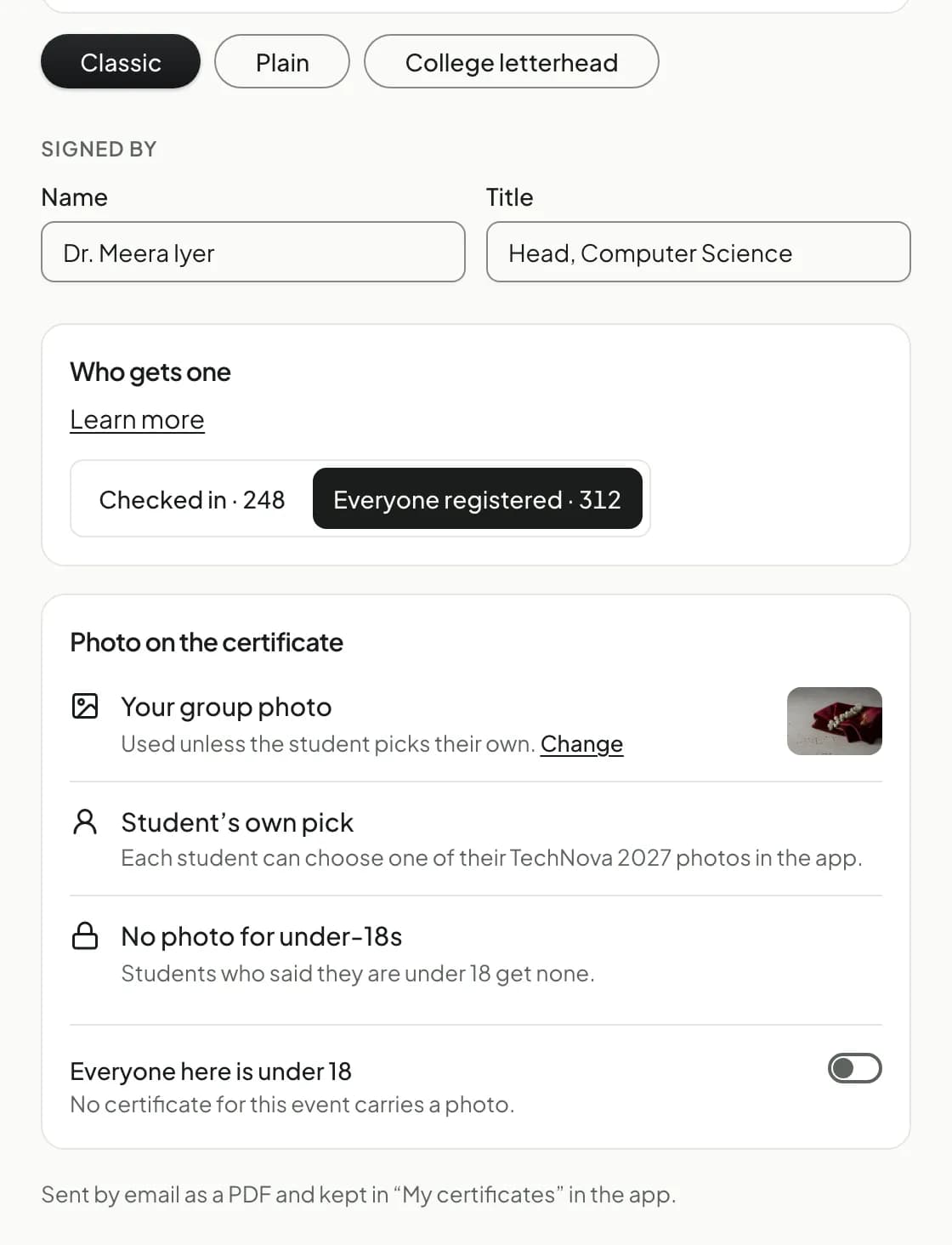
TipStudents who said they're under 18 get no photo on their certificate.
An admin of the event can Reissue a certificate (to fix a name or a prize) or Withdraw it from its row. Anyone running the event can download the PDF or send it again. On a school's event, no certificate has a photo. Certificates go only to people who registered, so registration has to be on for the event first.
Related
Still stuck? Contact us