Design your gallery
Updated
Choose how the client gallery looks: its cover, fonts, colours and photo grid.
- Step 1: Open the event and go to Design. Pick Cover, Typography, Color or Grid.
- Step 2: Under Cover layout, choose where the title sits over the cover photo. Upload, Photo and Crop change the photo itself.
- Step 3: Typography sets the title font and Color the gallery's colours. Grid sets the Style, Thumbnail size, Grid spacing and Navigation style.
- Step 4: Each change saves and goes live for guests straight away. Undo takes back the last one.
- Step 5: In the menu, Save as my default for new events starts every new gallery with this look. Reset to default goes back to the standard look.
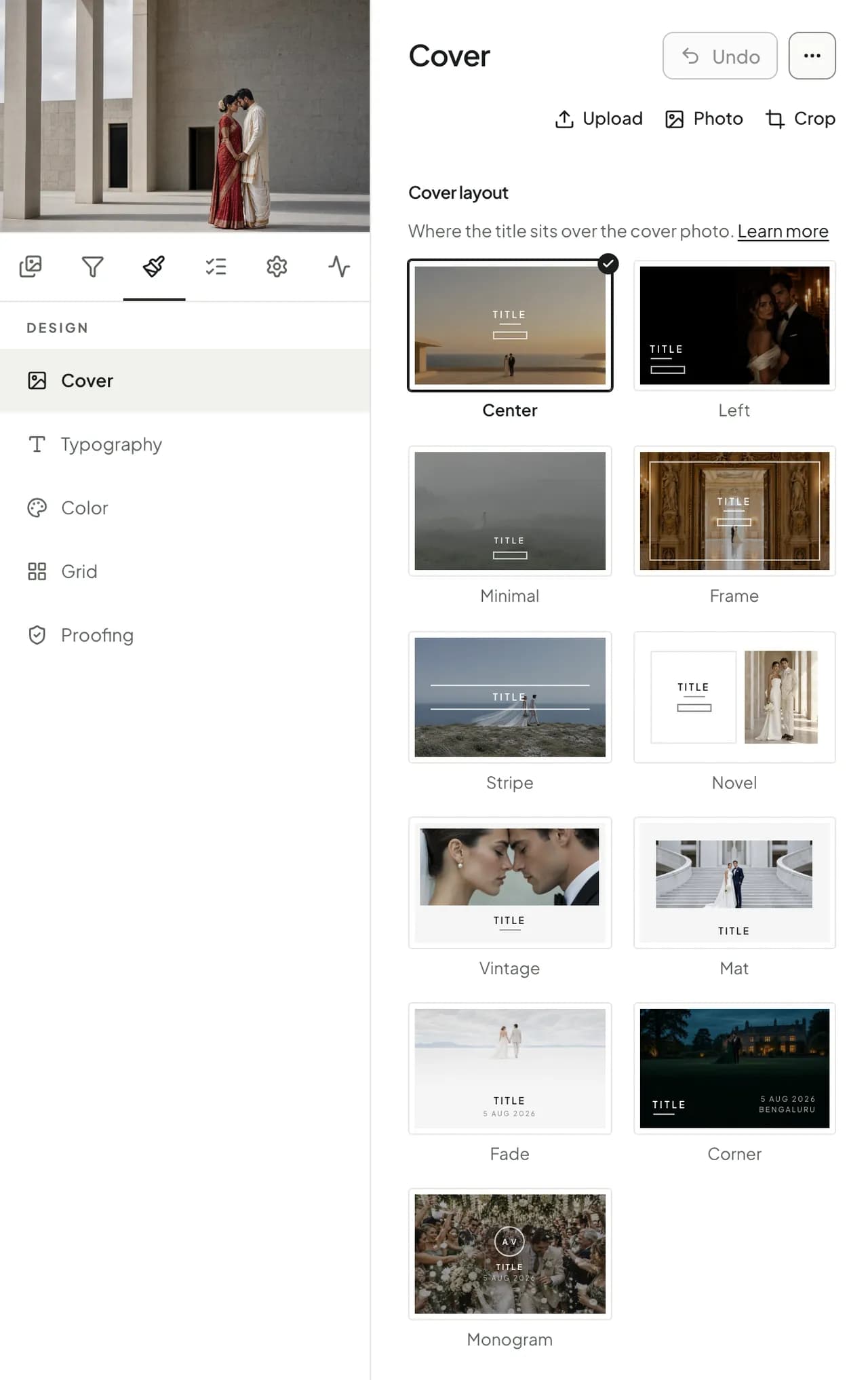
TipThe preview beside the options shows the gallery as guests see it. On a phone, switch to Preview.
Downloads, watermarks and print release are under Design › Proofing. The app has no Design screen: Edit cover changes the cover photo, and Manage on the web opens these settings.
Related
Still stuck? Contact us