My QR: one QR for all your events
Updated
One QR for all your events. Guests who scan it see the events you choose, or type any event's join code.
- Step 1: Open My QR. Each studio, organisation and person who makes events has one QR. Its short address, with a 4-character code, is under it.
- Step 2: Points to lists the events your QR shows, each with its date and join code. Tap the cross on a row to take it off.
- Step 3: Tap Add an event and pick any of your events, any date.
- Step 4: Tap Share QR, Download or Print. On a studio's QR, Poster design puts it on a poster to print, share or order.
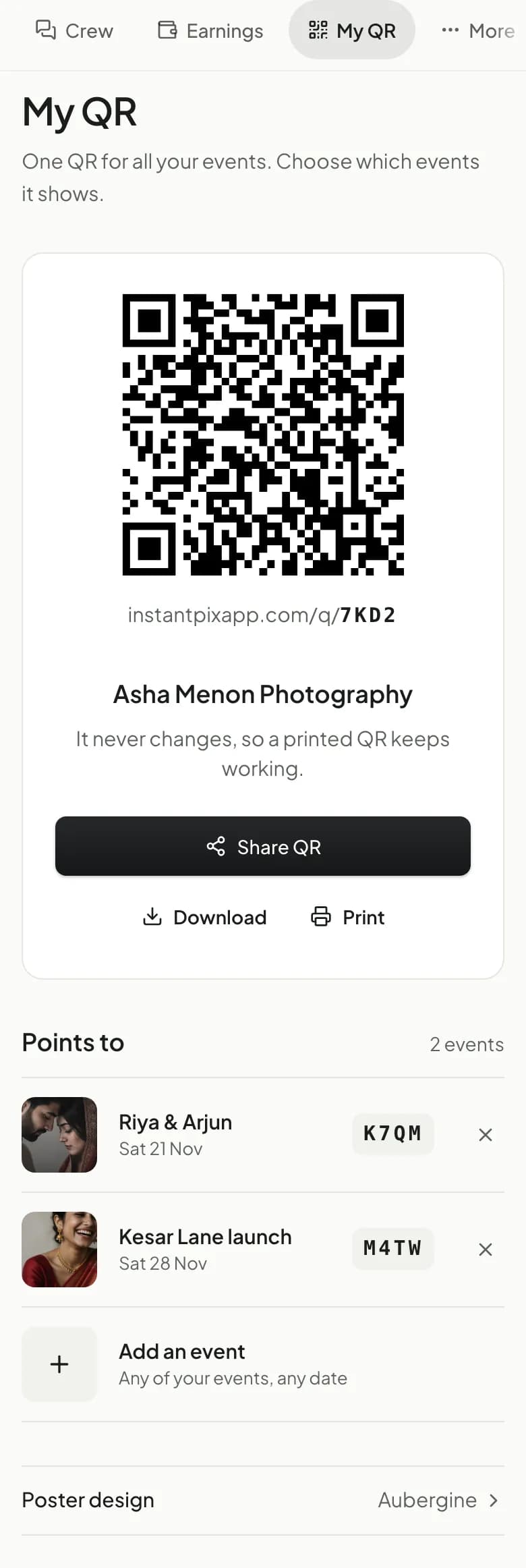
TipYour QR never changes, so a printed QR keeps working. Change what it points to any time.
A private event you add never shows as a row. Guests type its join code instead. For now, the QR you share, download or print may carry a longer link, so that today's app can open it. It opens the same page, and QRs you've already printed keep working.
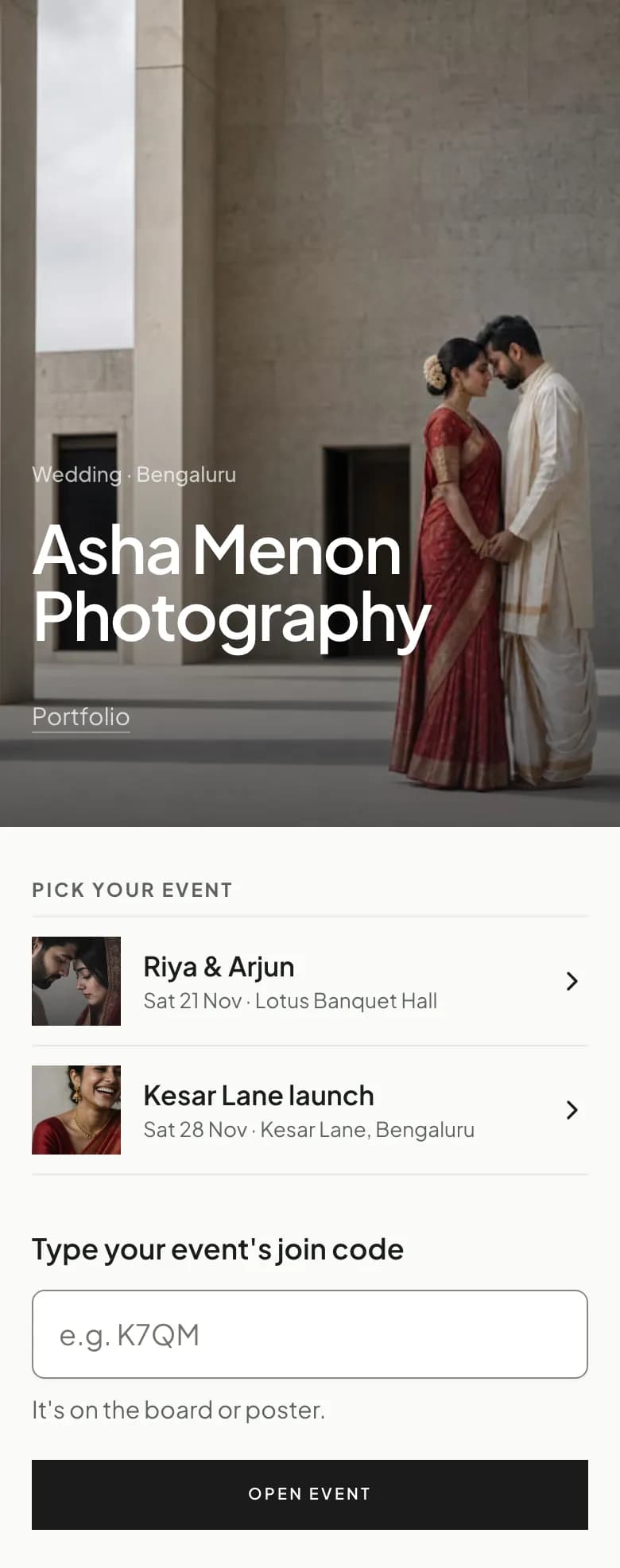
What your guests see
Your header, then Pick your event with a row for each public event your QR points to (Your event when there's only one). Under the rows, guests can Type your event's join code and tap Open event.
Related
Still stuck? Contact us