Your portfolio
Updated
Your best photos, shown on your public profile in the order a client meets them.
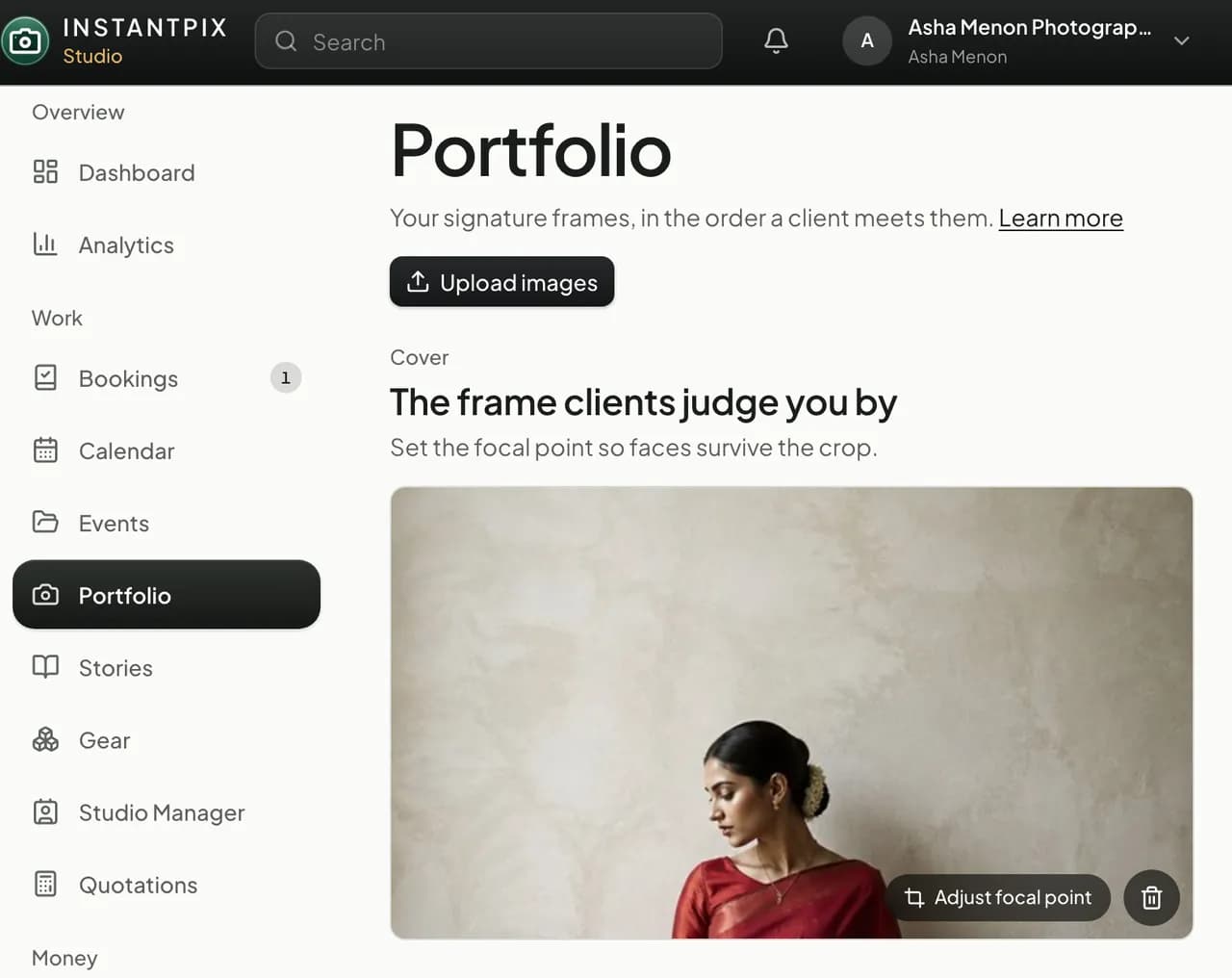
- Step 1: Open Portfolio and tap Upload images. Pick your strongest frames.
- Step 2: The first photo is your cover, the one a client sees first. Tap Set cover on another photo to put it first.
- Step 3: Drag the photos under Running order to change what follows the cover. Order saved shows when it's stored.
- Step 4: Tap Adjust focal point and drag the photo so faces stay in the frame wherever it's cropped. Then tap Save focal point.
TipUpload originals at least 2560px on the long edge, so your cover stays sharp on a big screen.
Removing a photo can't be undone. In the app, Organize sorts your photos into categories and sets the featured frame, the full-width photo on your public profile.
Related
Still stuck? Contact us