Connect a Wi-Fi camera
Updated
Each camera sends its photos straight into your event over Wi-Fi.
Before you start
Your camera sends photos over the internet. Join the venue Wi-Fi, or turn on your phone's hotspot and join it from the camera.
- Step 1: Open your event's uploader, tap Connect camera and pick your camera. We choose FTPS or SFTP for it. For another camera, tap Add camera.
- Step 2: Enter the Host, Port, Username and Password in the camera's FTP settings. Setup steps puts them and your camera's menus on one page.
- Step 3: Take a test shot. It shows in the Live monitor, then in the gallery.
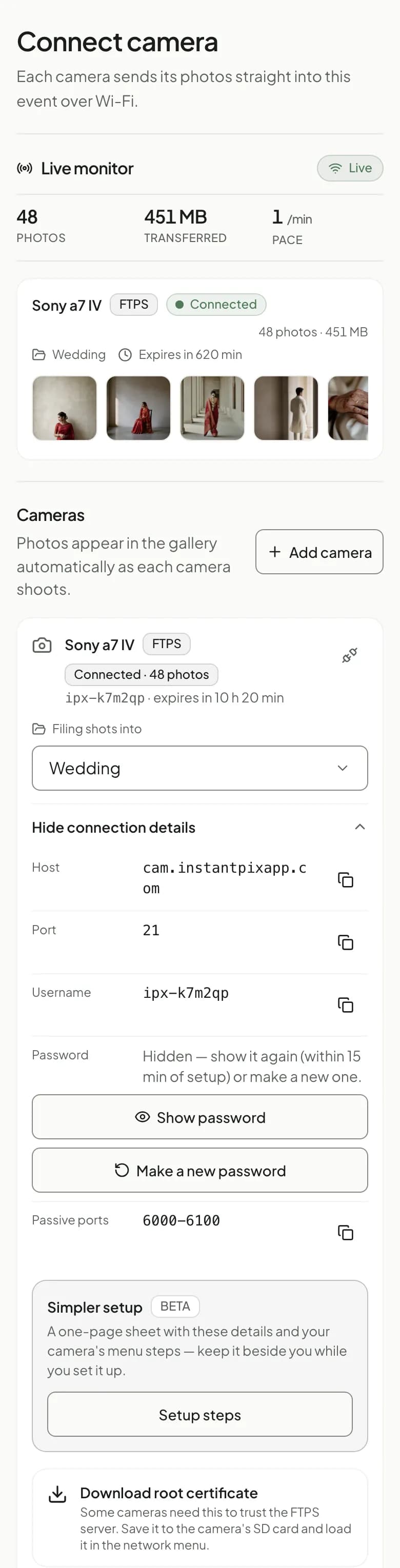
TipThe password is shown once. Within 15 minutes of setup, Show password brings it back. After that, tap Make a new password and enter the new details on the camera.
Connect as many cameras as you like. Each one files its photos into the collection you pick, and you can switch it any time without reconnecting. Each camera's details expire, and the Live monitor shows when.
FTPS
- Set the camera's FTP mode to FTPS (explicit TLS, also called FTPES). Plain FTP isn't accepted.
- Turn on passive (PASV) mode. Passive ports in the connection details shows the range it uses.
- Some cameras need our root certificate to trust the connection. Tap Download root certificate, save it to the camera's SD card and load it in the network menu.
- Still stuck? Set Transport to SFTP and set the camera up again.
SFTP
- We pick SFTP when your camera has it. It uses one port and needs no certificate.
- Set the camera's FTP mode to SFTP and log in with the username and password. No SSH key is needed.
- On the first connection the camera may ask you to trust the server. Accept it.
Nothing arriving?
- The camera is on Wi-Fi that has internet: a phone's hotspot or the venue Wi-Fi. A camera-only network, or venue Wi-Fi with a sign-in page, won't reach us.
- The camera's date and time are set to today.
- The password on the camera is typed exactly as shown, capitals included.
- For FTPS, the root certificate is loaded on the camera.
- When a camera has sent nothing for 3 minutes, the Live monitor shows this list too.
Related
Still stuck? Contact us