Guest list and who can join
Updated
Choose who can open the gallery, and whether guests see every photo or only their own.
- Step 1: Open your event and go to Settings › Access. Gallery access comes first, then Guests.
- Step 2: Under Who can join, pick Public (anyone with the code or link) or Private (only people you invite or approve).
- Step 3: Under What guests see, pick Whole gallery or Only their photos.
- Step 4: Add people in Settings › Guests, and answer Join requests as they come in.
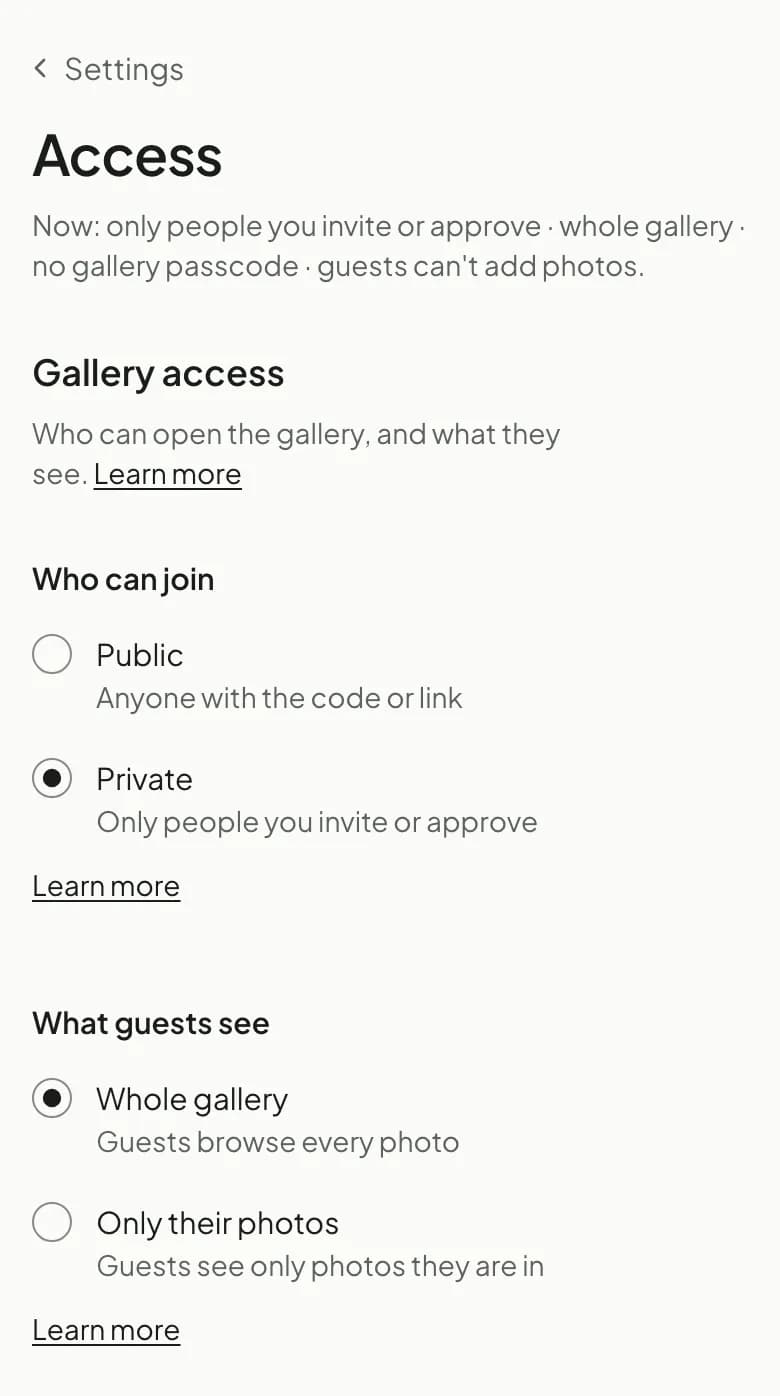
TipA gallery can also ask for a passcode. Set it under Gallery passcode on the same page.
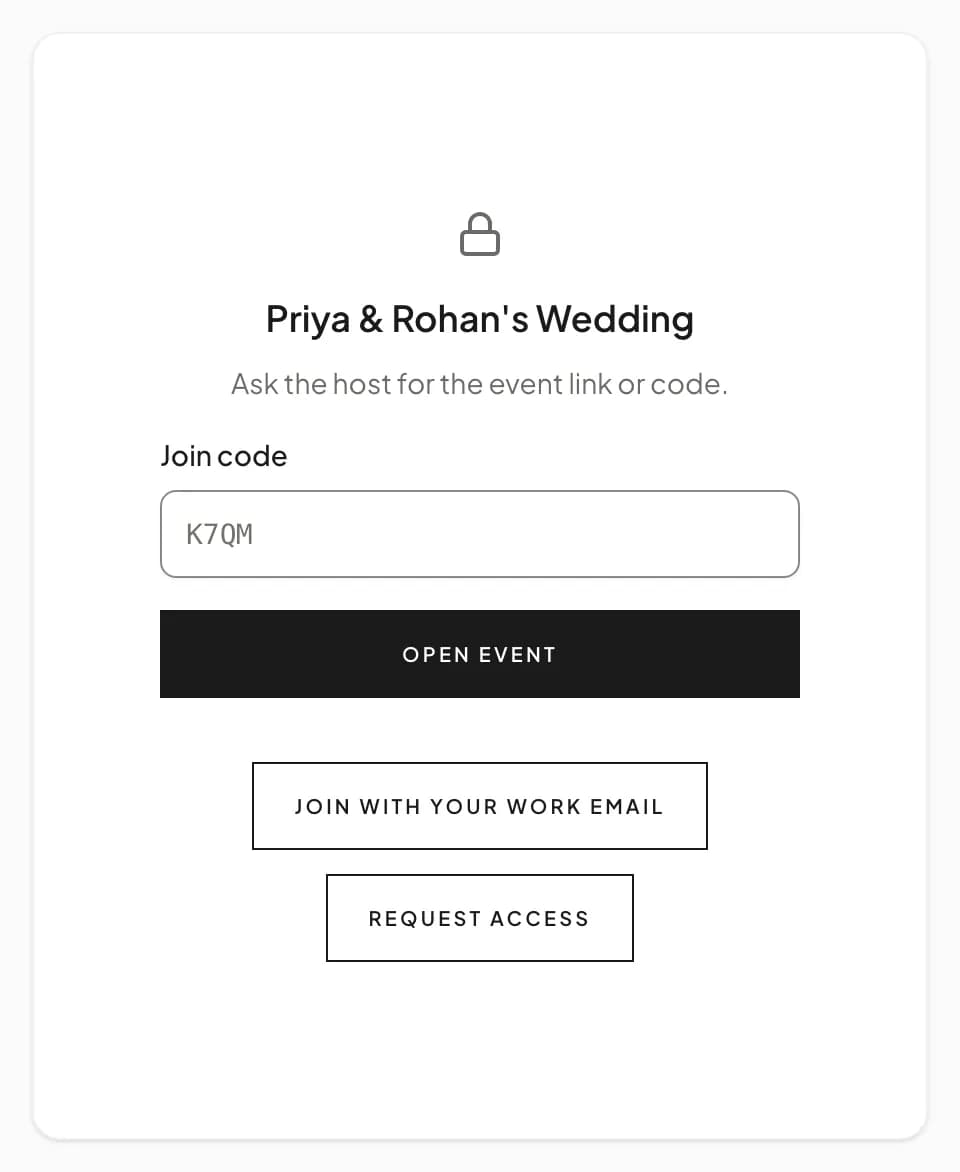
Guests adding photos and Work-email domains are also in Settings › Access, under Guests. Turn on Guests adding photos to let signed-in guests add their own photos to this gallery with Add your photos. Their uploads go into the same gallery, and guests can't upload RAW files. Under More options › Work-email domains, add a domain like acme.com. A guest whose account email is at that exact domain taps Join with your work email and joins without a code. They show on your guest list like anyone else, and you can remove them.
What your guests see
On a public event, guests open the gallery with the join code or link. On a private one, a guest who isn't on your list taps Request access and waits for you to approve.
Related
Still stuck? Contact us