See how an event's gallery is doing
Updated
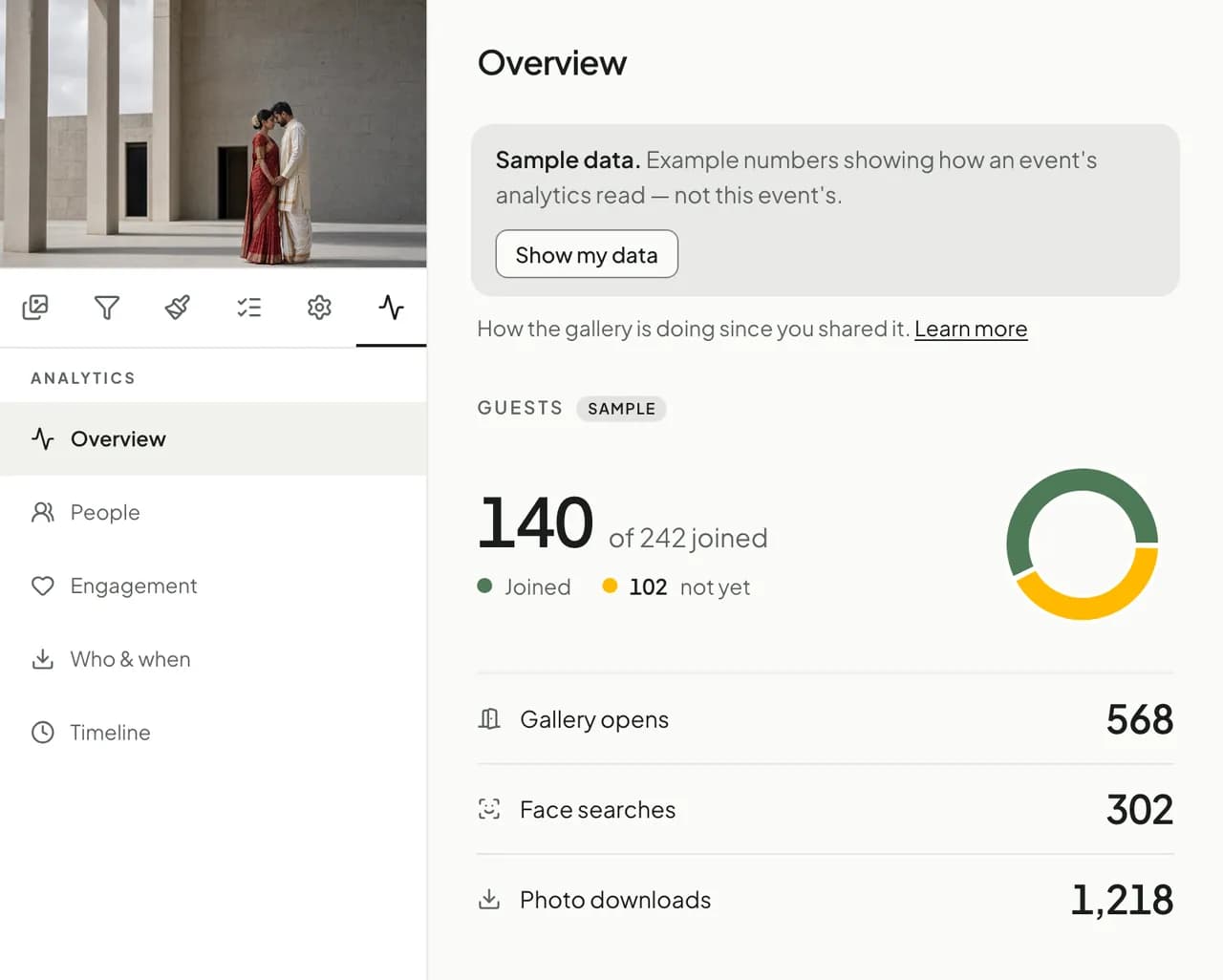
Analytics shows who joined, what's ready, what guests loved and when they came.
- Step 1: Open the event and go to Analytics. Overview shows how many guests joined, gallery opens, downloads and how many photos are ready.
- Step 2: People shows how many of the guests who joined are in the photos, and everyone who appears in them.
- Step 3: Engagement shows What guests loved: the photos most downloaded, favorited and picked for the album.
- Step 4: Who & when shows gallery opens and downloads day by day, and who downloaded the most.
- Step 5: Timeline shows the photos by the hour they were taken. Pick an hour to see them.
TipDevices that opened the gallery counts devices, not people, so one guest on a phone and a laptop counts twice.
Engagement counts actions, not photos: one photo can be downloaded, favorited and picked, and counts once in each. In the app, open Event stats from the event's More menu.
Related
Still stuck? Contact us