Team and roles
Updated
Add second shooters and editors to one event's Team. Add the people who run an organisation's events under Members.
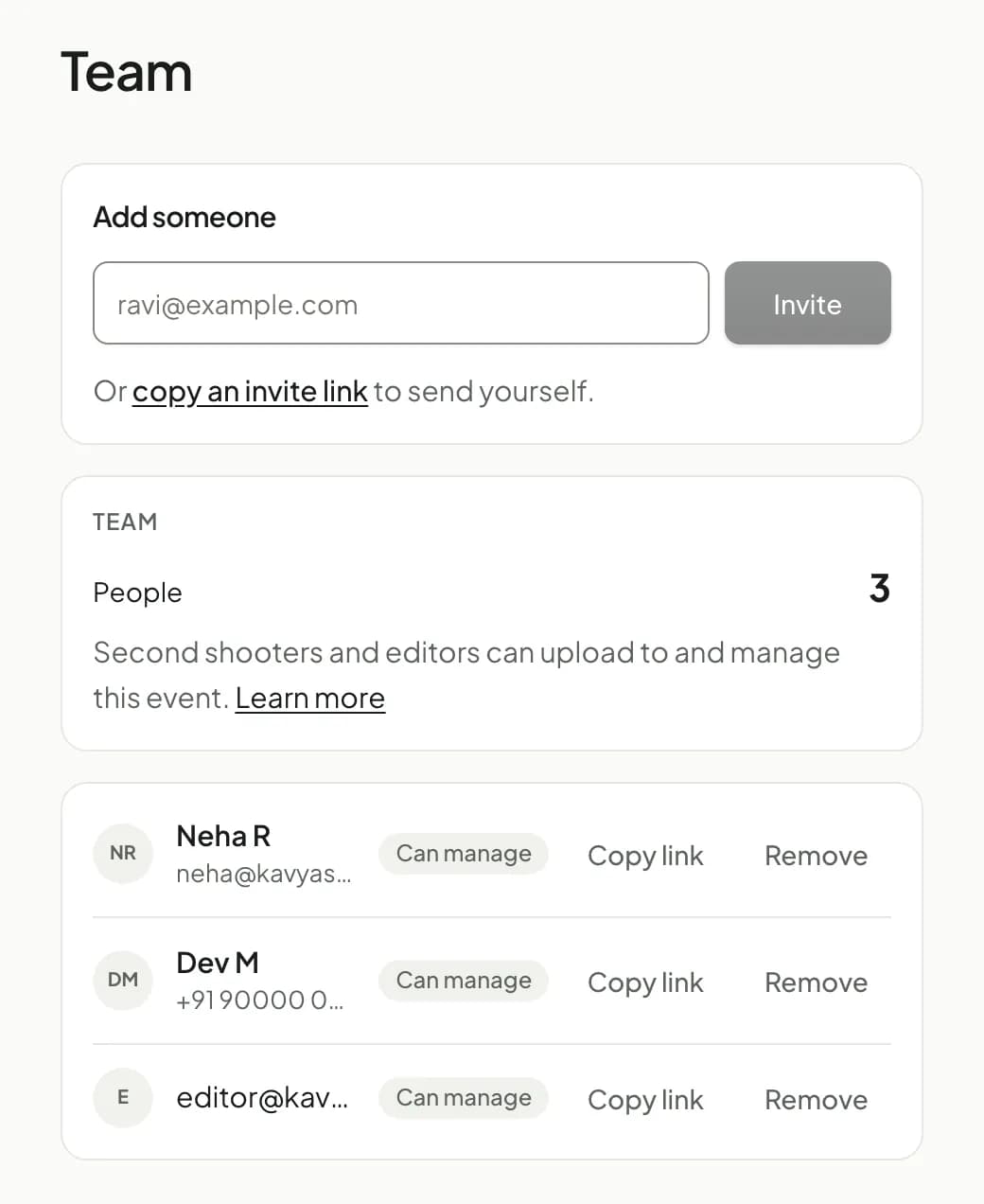
- Step 1: For one event: open the event and go to Settings › Team.
- Step 2: Type an email or phone under Add someone and tap Invite. They get a notice in the app or an email. If neither goes out, the invite link is copied for you to send.
- Step 3: Tap Copy link on a row to send it again, or Remove to take them off the event.
- Step 4: For an organisation: open Members and tap Invite. Enter Email or phone, choose a Role and who it's For, then tap Send invite.
- Step 5: To change a role, open the menu on a person's row and choose Make org admin, Make unit admin or Make coordinator, or Remove.
TipOne-event helpers, like a hired photographer or an uploading volunteer, go in that event's Team, not in Members.
Team members can upload to the event and manage it. Only the event's owner can add or remove them. The roles, as Members explains them. Org admin: everything, including every unit and event, guest contacts and export, members, verification and plan. Unit admin: creates, runs and deletes their unit's events, sees guest contacts and invites people to the unit. Coordinator: creates and runs their unit's events, sees guests by name only, and can't delete or export. A person shows as Invite waiting until they accept.
Related
Still stuck? Contact us