Add photos to an event
Updated
Add photos and videos to an event, sort them into collections, and get back anything you delete.
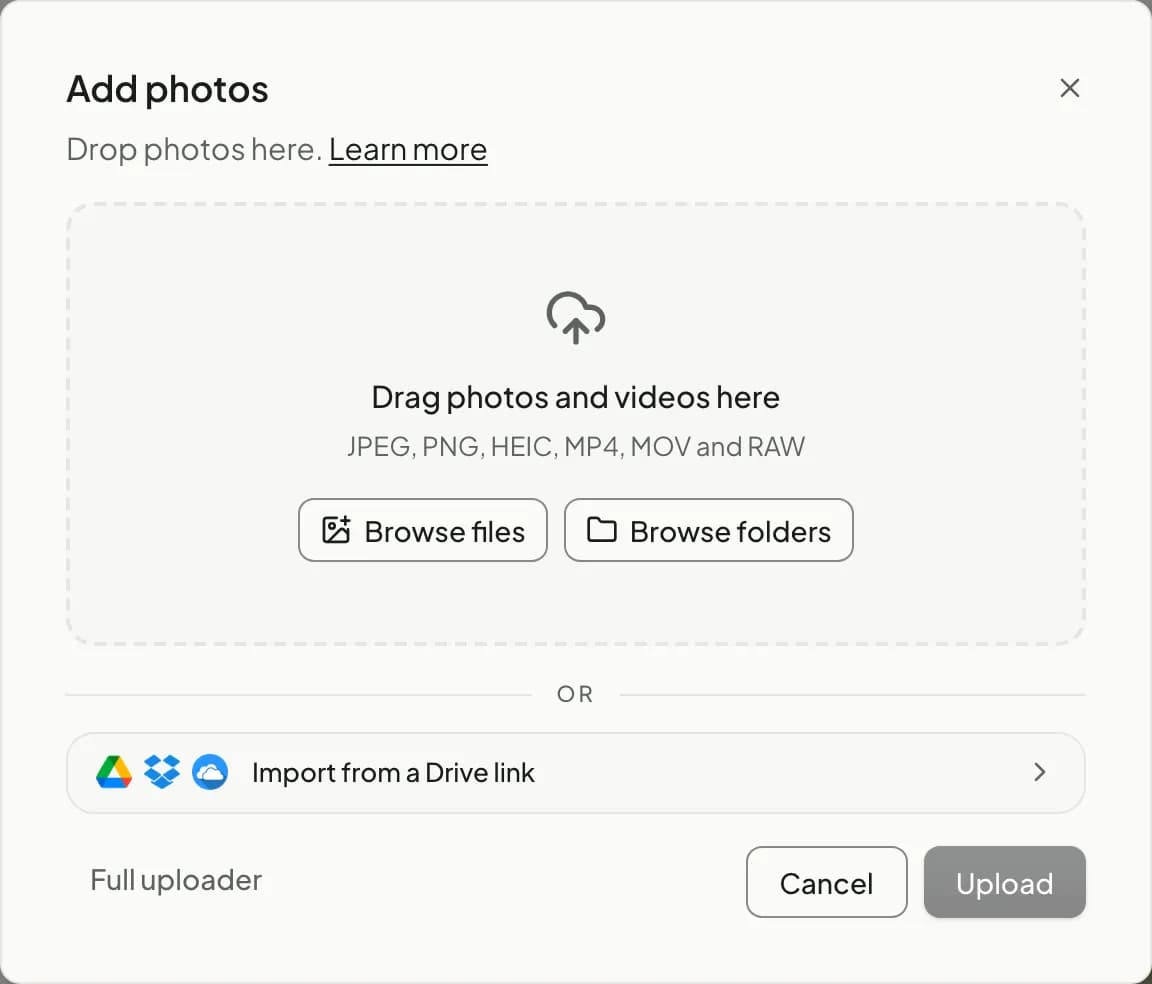
- Step 1: Open the event, go to Photos and tap Add photos. Drag photos and videos in, or tap Browse files, Browse folders or Import from a Drive link.
- Step 2: Check the list and tap the upload button. Uploads keep going while you use other pages. For a very large batch, use Full uploader.
- Step 3: To group photos, tap New collection, name it and tap Create. Then select photos and tap Add to collection.
- Step 4: To take photos out, select them and tap Delete. They go to Trash, where Restore puts them back.
TipDeleted photos are kept in Trash for 30 days.
You can add JPEG, PNG, MP4, MOV and RAW files. RAW files are kept as originals to download: they have no preview and don't show up when guests look for their own photos. Duplicate files are marked and skipped. In the app, tap Upload in the event's gallery.
Related
Still stuck? Contact us