Quotes, invoices and payments
Updated
Send a quote, turn it into an invoice with a payment schedule, then record or refund each payment.
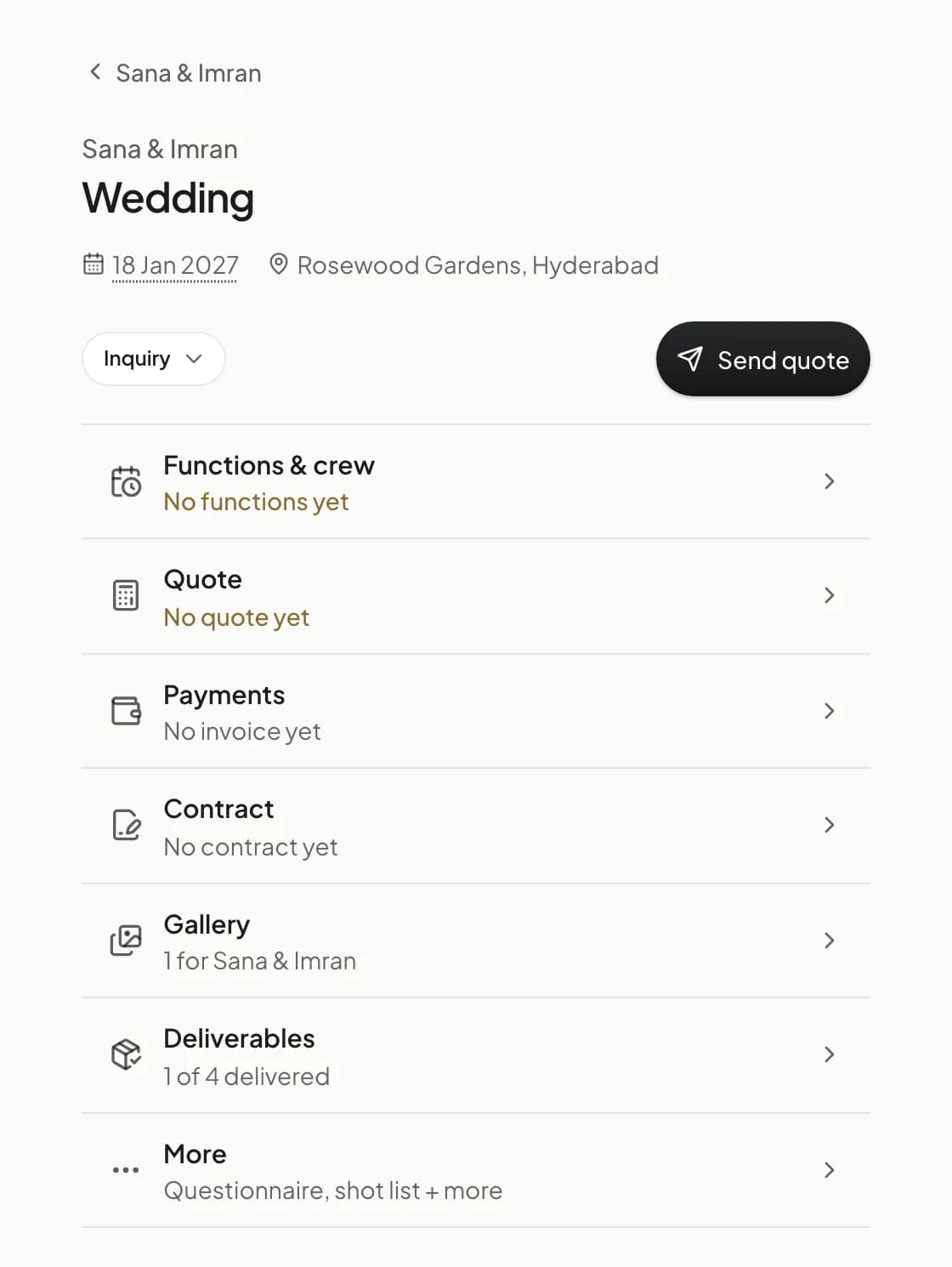
- Step 1: Open the booking in Studio Manager and tap Send quote, or open Quote and tap New quote. Fill it in and tap Send quote, or Finalise & share if your client isn't on the app.
- Step 2: When your client accepts, or tells you yes another way, tap Client said yes. Then open Payments and tap New invoice.
- Step 3: Under Payment schedule, choose Full payment, Advance + balance, 3 parts or Custom. Under Ways to pay, tick Online (card, UPI or netbanking through the client portal), Direct UPI / bank, or both.
- Step 4: Tap Send invoice. It takes your next invoice number, and you can't edit it after that. To fix a mistake, void the invoice and raise a new one.
- Step 5: When a direct payment arrives, tap Mark paid on it. To refund an online payment, open its menu, tap Refund, and enter the amount and a reason.
TipThe InstantPix service fee isn't returned when you refund. A payment you marked paid yourself can't be refunded through InstantPix, and Undo mark paid only removes your record.
Under Look, pick Classic, Story or Simple. See the looks saves your draft and shows this quote or invoice in each look. Swipe or use the arrows, then tap Use this look. Nothing is sent and no number is taken. You can't edit a sent quote. Revise it instead. A quote that's been accepted or declined stays as it is, so write a new one if things change. Cancel this payment drops one unpaid payment from an invoice. Void invoice cancels the whole invoice, and anything already paid stays paid. Quotes & invoices holds your GST status and how new quotes and invoices start. Only the owner can open Payments.
Related
Still stuck? Contact us